

If you’ve typed “Visual Studio Code download” into Google recently, chances are you’re either starting your coding journey or setting up a new machine and just want the fastest, most reliable path to getting the editor running. Either way, you’re in the right place.
This guide covers what Visual Studio Code is, how it’s different from Visual Studio (a mix-up that trips up a lot of beginners), how to download and install it on Windows, why it’s become the world’s most-used code editor, and answers to the questions people ask most often — like whether “Visual Studio Code 2019” or “Visual Studio Code 2026” are even real things.
What Is Visual Studio Code?
Visual Studio Code, usually just called VS Code, is a free source code editor built by Microsoft. It’s not the same product as “Visual Studio” (more on that confusion below). VS Code was first released back in 2015, and it’s grown from a lightweight text editor into something that behaves almost like a full IDE, thanks to its massive extension ecosystem.
It runs on Windows, macOS, and Linux, which is why people constantly search for it as a “cross-platform” tool. Whether you’re on a Windows 10 laptop, a MacBook, or an Ubuntu machine, the download and the experience are basically identical.
Out of the box, VS Code gives you:
- A fast, clean code editor with syntax highlighting for hundreds of languages
- IntelliSense (smart autocomplete) for JavaScript, TypeScript, JSON, CSS, and HTML
- Built-in Git and source control support
- An integrated terminal so you never have to leave the editor
- A huge marketplace of free extensions for literally every language and framework
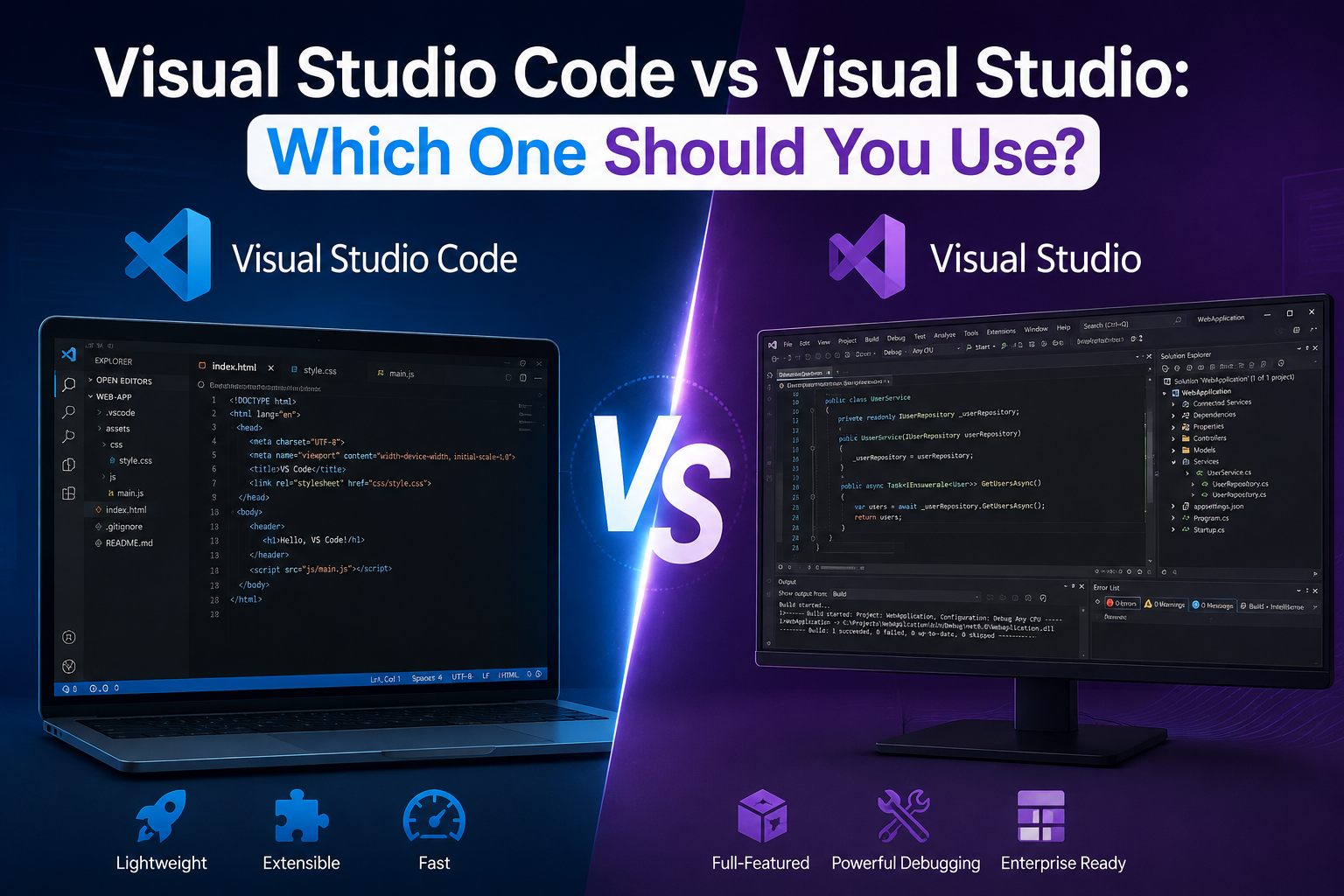
Visual Studio Code vs. Visual Studio: Clearing Up the Confusion
This is one of the most searched comparisons, and honestly, Microsoft’s naming doesn’t help. Here’s a simple breakdown:
| Visual Studio Code | Visual Studio | |
| What it is | A lightweight, free code editor | A full-scale, heavyweight IDE |
| Best for | Web dev, scripting, Python, JS/TS, general coding | .NET, C#, enterprise, Windows/desktop apps |
| Size | Roughly 100–250 MB | Several GB |
| Platforms | Windows, macOS, Linux | Primarily Windows (limited macOS support) |
| Price | Always free | Free (Community) to paid (Professional/Enterprise) |
So if you searched for “Visual Studio download” expecting the same thing as VS Code — you want a different, much larger product aimed at .NET and enterprise development. If your goal is web development, Python, or general scripting, VS Code is almost certainly what you need.
How to Download Visual Studio Code for Windows 10 (Step by Step)
Downloading and installing VS Code takes less than five minutes. Here’s the process for Windows 10 and 11:
- Go to the official site — code.visualstudio.com is the only place you should download it from. Avoid third-party download sites.
- Click the Windows download button. The site auto-detects your OS, but you can also pick the specific build (System Installer or User Installer) from the dropdown.
- Run the installer. Accept the license agreement, and when you reach the “Select Additional Tasks” screen, it’s worth ticking:
- “Add to PATH” — lets you open VS Code from any terminal by typing code
- “Add ‘Open with Code’ action” — adds a right-click shortcut in File Explorer
- Launch VS Code once installation finishes.
- Sign in with GitHub (optional) to sync your settings, themes, and extensions across devices.
That’s it: no product key, no activation, no cost. It’s completely free, whether you’re a student, hobbyist, or professional developer.
What’s New: Visual Studio Code 2026
VS Code ships monthly updates, and the pace of change has picked up a lot recently because of AI. Some of the recent additions worth knowing about if you’re deciding whether to update:
- AI Agent Sessions — VS Code now runs AI coding Estate
- agents (like GitHub Copilot) in a dedicated process, so you can hand off longer or repetitive coding tasks and review the changes in a docked editor panel before accepting them.
- Built-in dictation — you can now dictate directly into chat, the editor, or the terminal without installing a separate extension.
- Modern UI (experimental) — a refreshed workbench appearance is rolling out, available as a preview in the Stable release and on by default in Insiders.
- Better diff and review tools — file-by-file addition/deletion counts, a more compact diff view, and side-by-side or inline comparisons when reviewing AI-generated or manual changes.
If you’d rather test upcoming features before they officially ship, you can install the Insiders build, which runs completely independently alongside your regular VS Code install.
Is there a “Visual Studio Code 2019”?
Not exactly — and this is a common point of confusion. Unlike Visual Studio (which does have year-based editions like Visual Studio 2019 or Visual Studio 2022), VS Code doesn’t use yearly version numbers. It uses a rolling release model with version numbers like 1.109, 1.110, and so on, updated roughly every month. So if you’re looking for “Visual Studio Code 2019,” what you likely remember is simply an older version of VS Code from that year — and the good news is you don’t need to hunt for it. Installing the current version gives you everything the 2019 build had, plus years of improvements.
Visual Studio Code for C++ Development
VS Code isn’t limited to web development. It’s also a solid choice for C and C++ programming, especially if you don’t want the overhead of a full IDE. To get proper C++ support, you’ll want to install:
- The official C/C++ extension from Microsoft (adds IntelliSense, debugging, and code browsing)
- A compiler such as MinGW or MSVC on Windows, or GCC/Clang on Linux/macOS
- Optionally, CMake Tools if your project uses CMake
Once set up, you get IntelliSense, breakpoint debugging, variable inspection, and even disassembly view for low-level analysis features that used to require a much heavier IDE.
Why Developers Keep Choosing VS Code
A few reasons VS Code has become the default editor for so many developers:
- It’s genuinely free — no license, no trial period, no paywall for core features.
- It’s fast and lightweight compared to full IDEs, even with dozens of extensions installed.
- The extension marketplace is enormous — lint-ers, formatters, themes, Docker support, database tools, and language packs for nearly everything.
- It’s cross-platform, so your setup, shortcuts, and extensions carry over whether you switch between Windows, macOS, or Linux.
- AI tooling is built in and constantly evolving, with GitHub Copilot integration going well beyond simple autocomplete into agent-style, context-aware assistance.
- Community trust is enormous — in the most recent Stack Overflow Developer Survey, over 75% of developers reported using VS Code, more than double the number using any other editor or IDE.
Frequently Asked Questions
Is Visual Studio Code really free?
Yes. VS Code is free for personal, educational, and commercial use, with no license fees.
Is VS Code an IDE or just a text editor?
Technically, it started as a text editor, but with extensions for debugging, IntelliSense, Git, and language support, it functions like a full IDE for most workflows.
Does Visual Studio Code work on Windows 10?
Yes, VS Code supports Windows 10 and 11, along with macOS 10.15+ and most major Linux distributions.
What’s the difference between VS Code and Microsoft Visual Studio?
VS Code is a lightweight, cross-platform code editor for general-purpose development. Visual Studio is a much larger, Windows-focused IDE built primarily for .NET and enterprise application development.
Can I use Visual Studio Code without installing anything, using a browser?
Yes — vscode.dev lets you edit local files and GitHub or Azure repositories directly in the browser, no installation required.
Does VS Code collect my data?
It does collect basic usage telemetry to help Microsoft improve the product, but this can be turned off in settings, and because VS Code is open source, the telemetry code itself is publicly viewable.
Final Thoughts
Whether you’re downloading Visual Studio Code for the first time, switching over from another editor, or just trying to understand how it differs from Visual Studio, the takeaway is simple: it’s free, it’s cross-platform, it’s actively developed with new AI features shipping almost every month, and it’s become the default tool for a huge share of developers worldwide for good reason.
Want More Software Guides Like This?
If you found this useful, SoftwareCora publishes regular guides on developer tools, software downloads, and tech how-tos — written to help you get things done, not just rank on Google. Head over to softwarecora.com for more honest, practical software reviews and tutorials.
